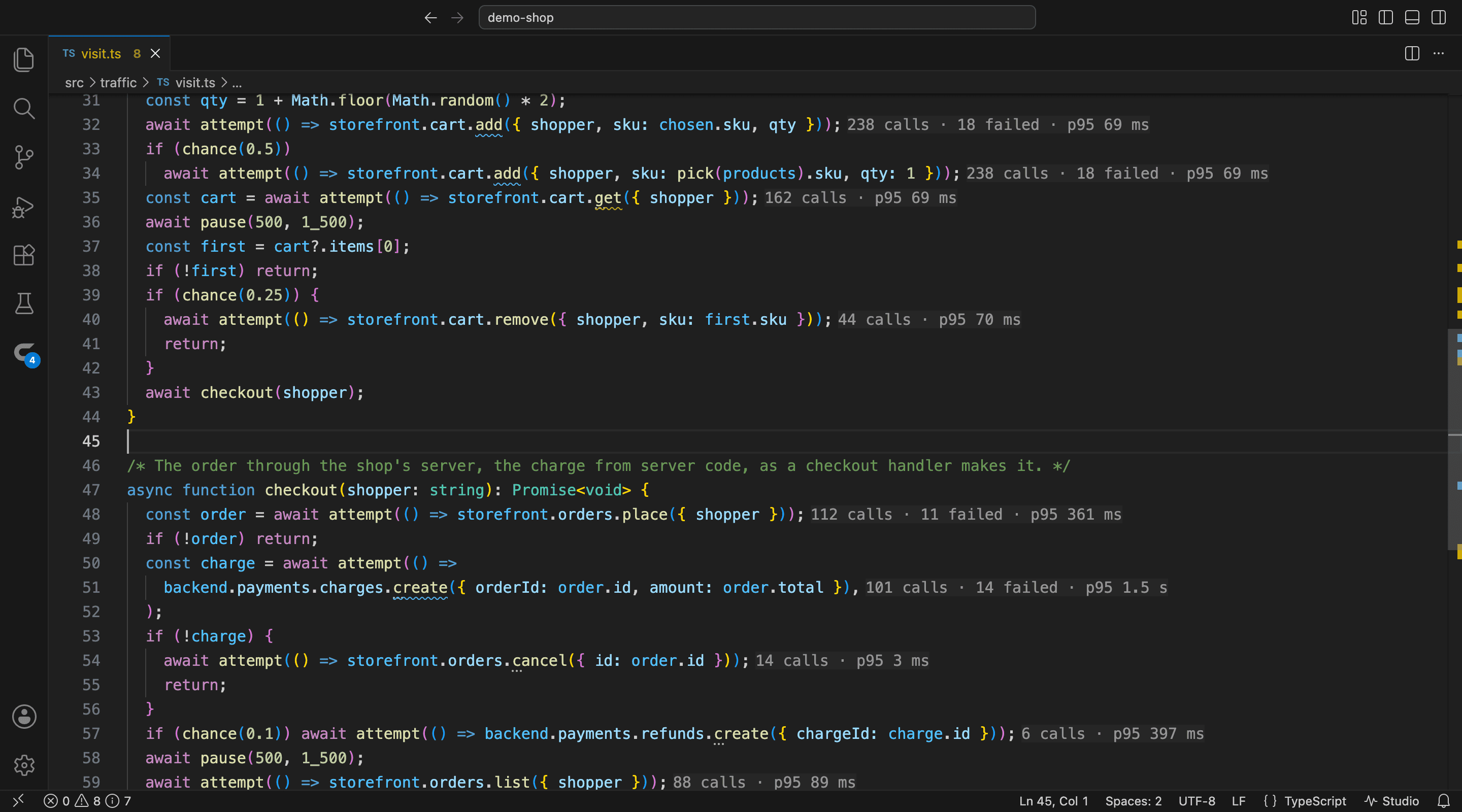
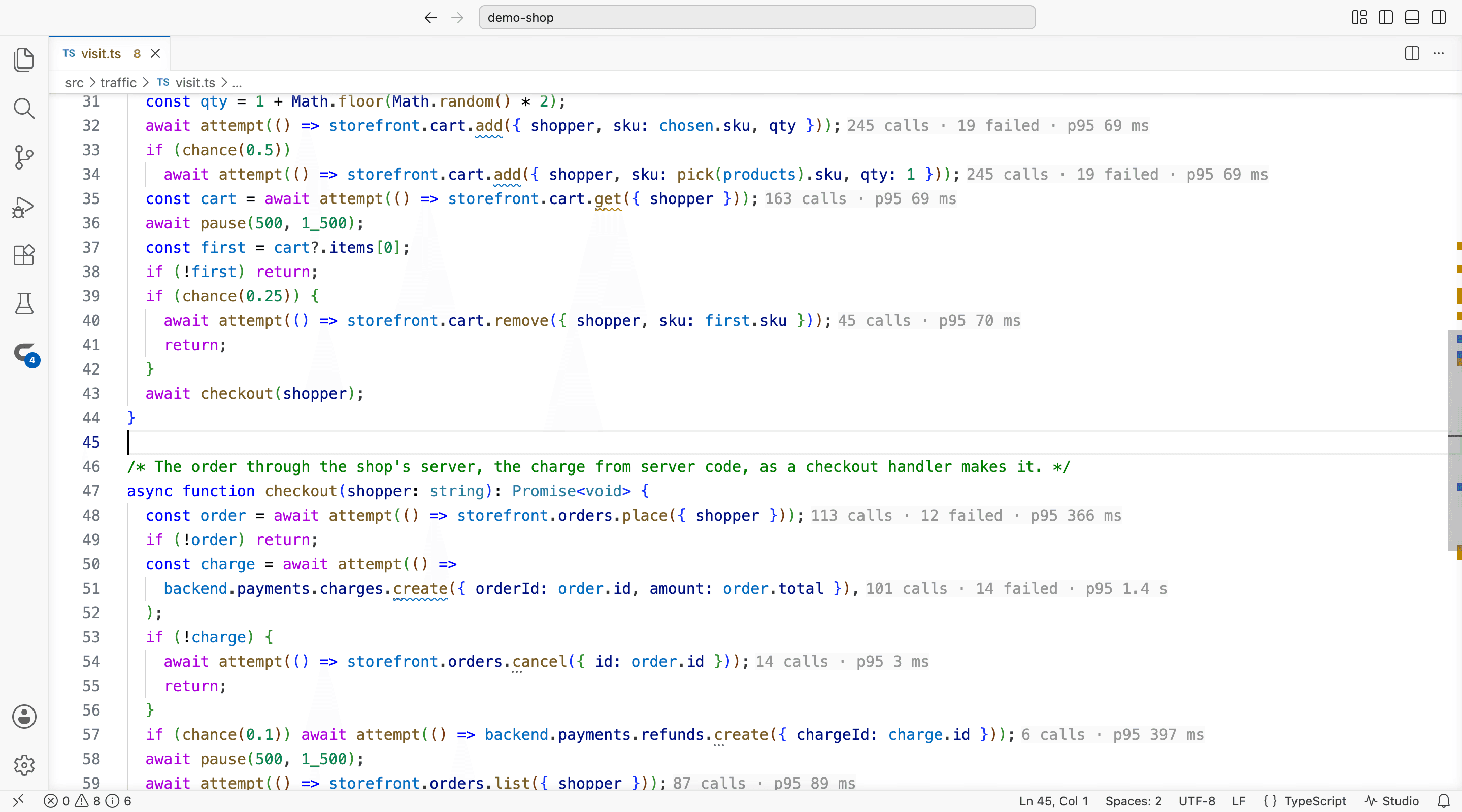
Studio knows how every call to each endpoint went; your editor knows where the code makes them. The Courier extension puts the two together, above the call itself, and the figures move as your app runs:
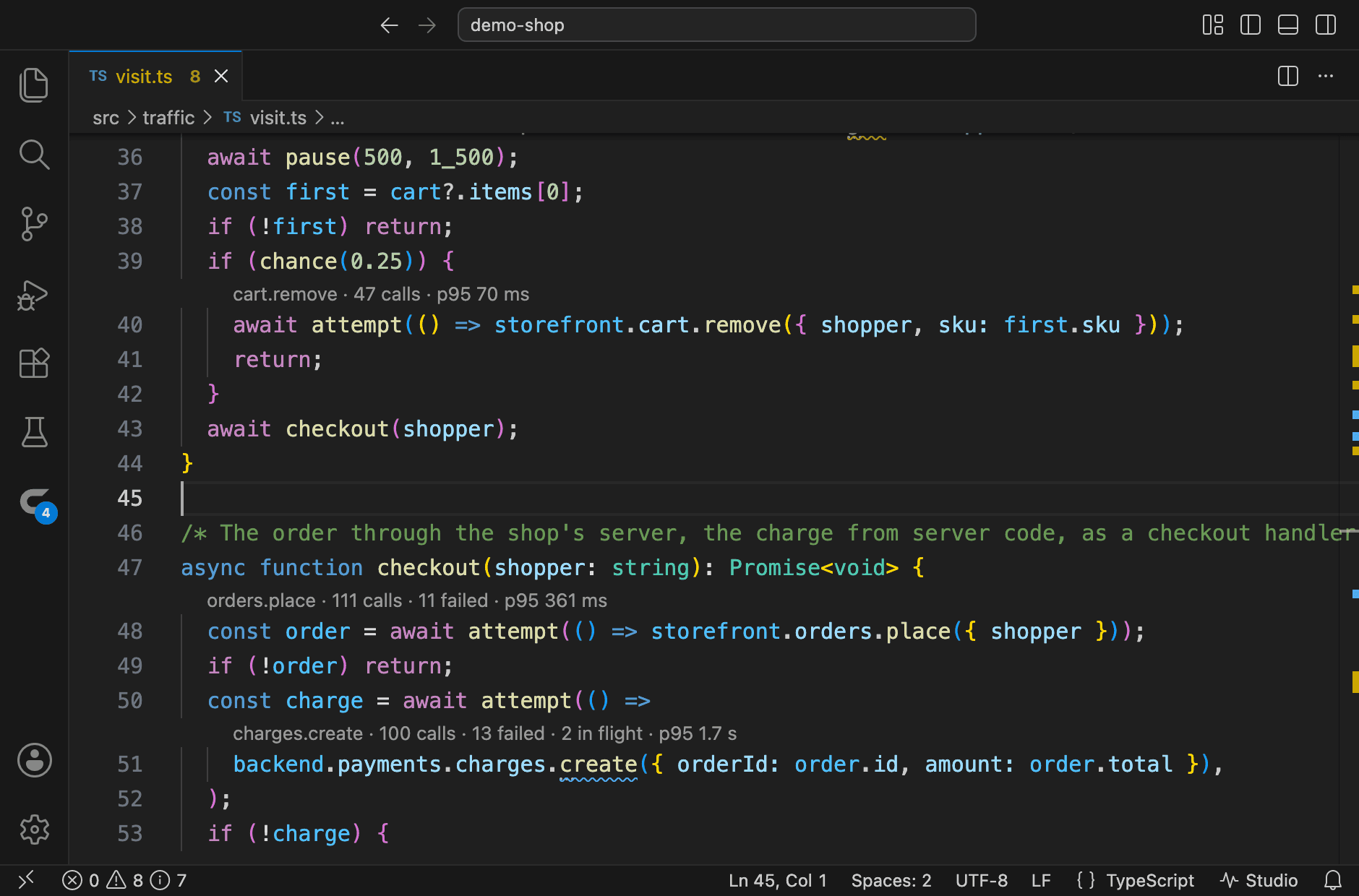
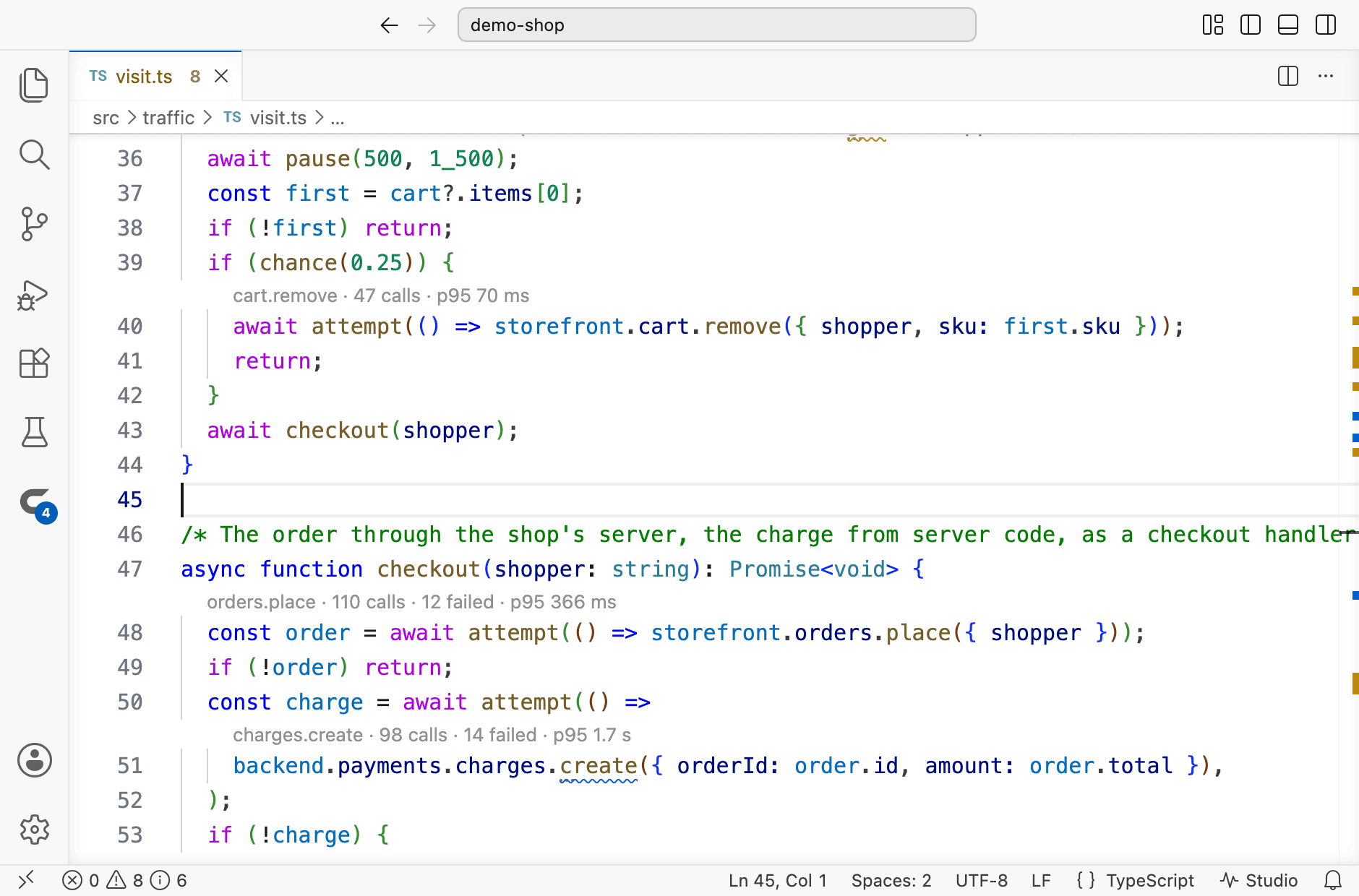
And the other way round, Studio's inspector and Explorer list the code that calls an endpoint, each call site opening in your editor at its line.
Install
| Editor | Where |
|---|---|
| VS Code | Courier in the Extensions view, or the Visual Studio Marketplace |
| Cursor, Windsurf, VSCodium | Courier in the Extensions view, from Open VSX |
Or from a terminal:
code --install-extension noverax.courier-vscodeThen start Studio for your project — Start Studio in the Courier view or the status bar, or a terminal as you always do — and the extension finds it on its own:
npx @noverax/courier-studioCourier installs Courier File Icons with it, as its extension pack: the part that puts Courier's icons into your icon theme, which runs where the editor's window runs.
Help → Welcome → Get Started with Courier walks you through it: setting Courier up, starting Studio, reading the figures and giving your agent the API.
What you see
Above each call to an endpoint, how that endpoint's calls went in this session: how many there were, how many failed and how many are still in flight, and how long nineteen in twenty took. A stream or a channel counts its connections, and how many are still open. The figures come up to date every few seconds while the editor has focus, and a click on the line opens the endpoint in Studio's Explorer.
Hover over the call for the rest: the median and the 95th percentile, the statuses the calls ended with, and the latest failure with its reason. Open in Studio opens the endpoint; Open the latest failure opens that request in Studio's inspector — its variables, its response, its timing.
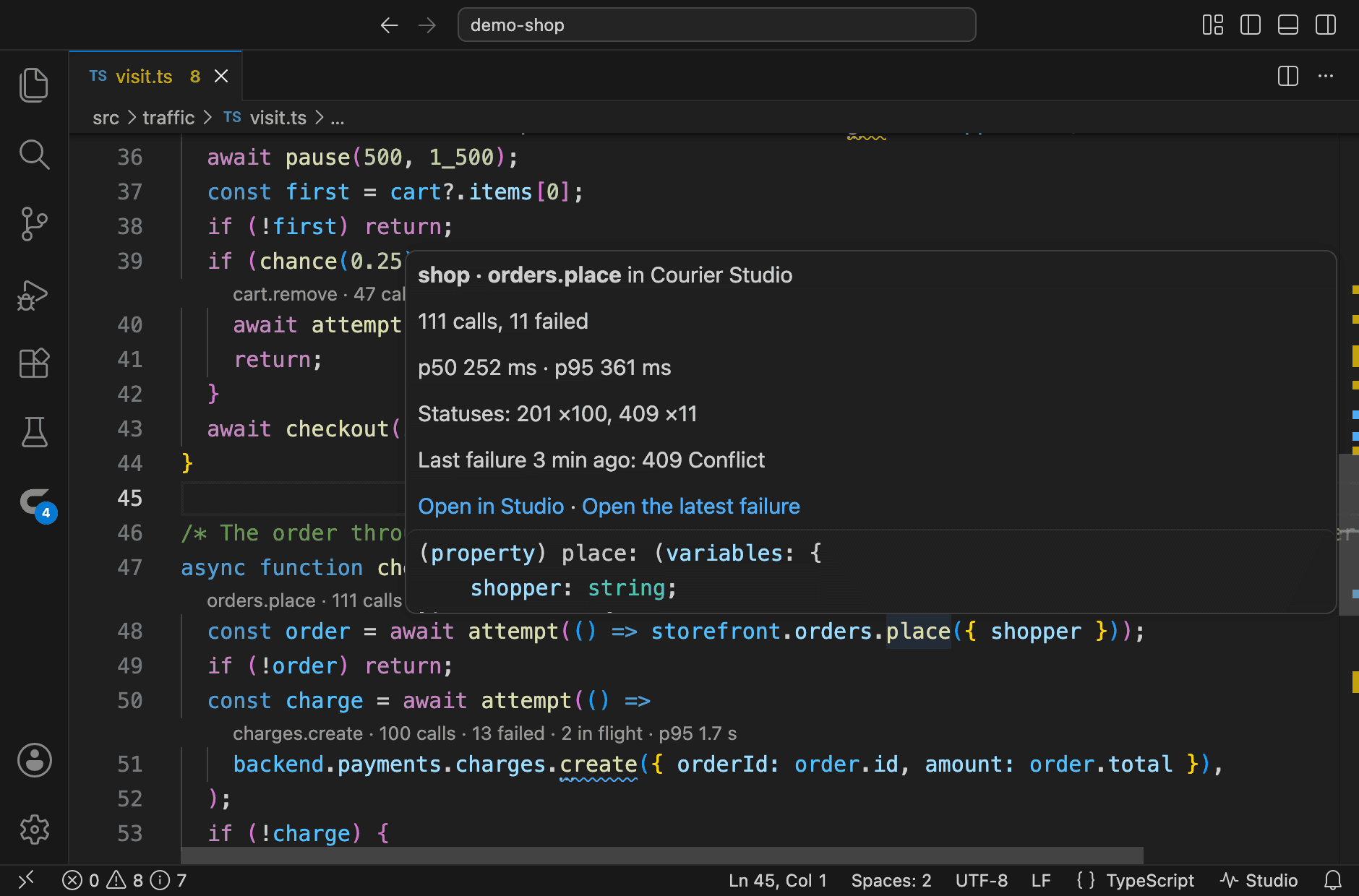
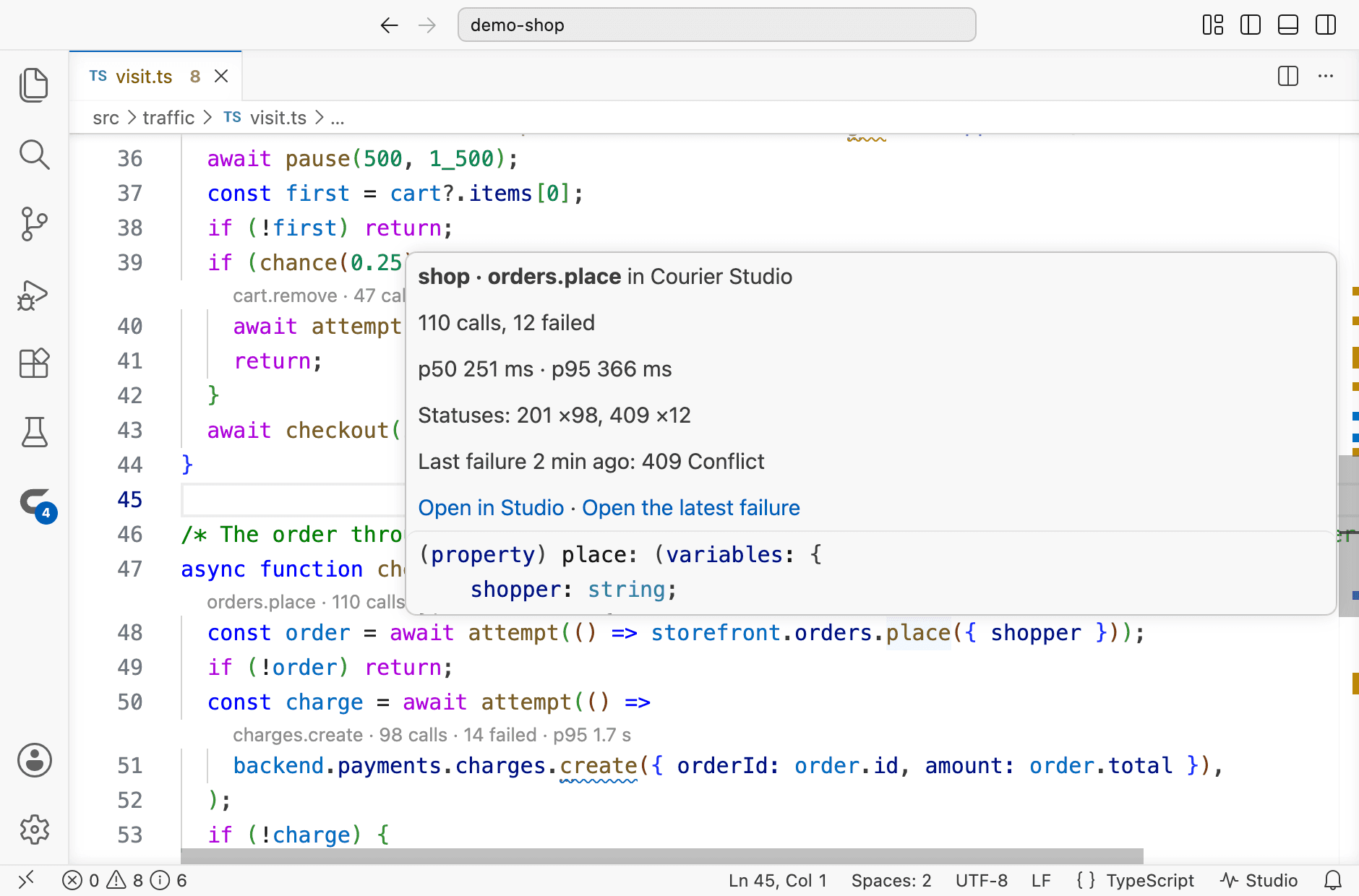
The status bar shows Studio while a Studio answers for the project of the file in front, a click opening it; and Start Studio for a Courier project whose Studio does not run.
At the end of the line instead
A line above each call costs a line of the screen per call. Set courier.hints.style to inlay and the same figures sit at the end of the call's own line, as an inlay hint: its tooltip holds the figures in full, and a click on it opens the endpoint in Studio. The editor's own Editor › Inlay Hints: Enabled setting must leave inlay hints on.
Studio in your editor
Every page of Studio's the extension opens — an endpoint from its hint or the Courier view, a request from the Requests view, the audit from a finding — opens in a tab of the editor's own, beside your code, and the next one opens in the same tab without loading Studio again. Courier: Open Studio in Editor opens Studio there on its own; Courier: Open Studio in Browser opens your browser instead, and courier.studio.openIn set to browser sends every page there.
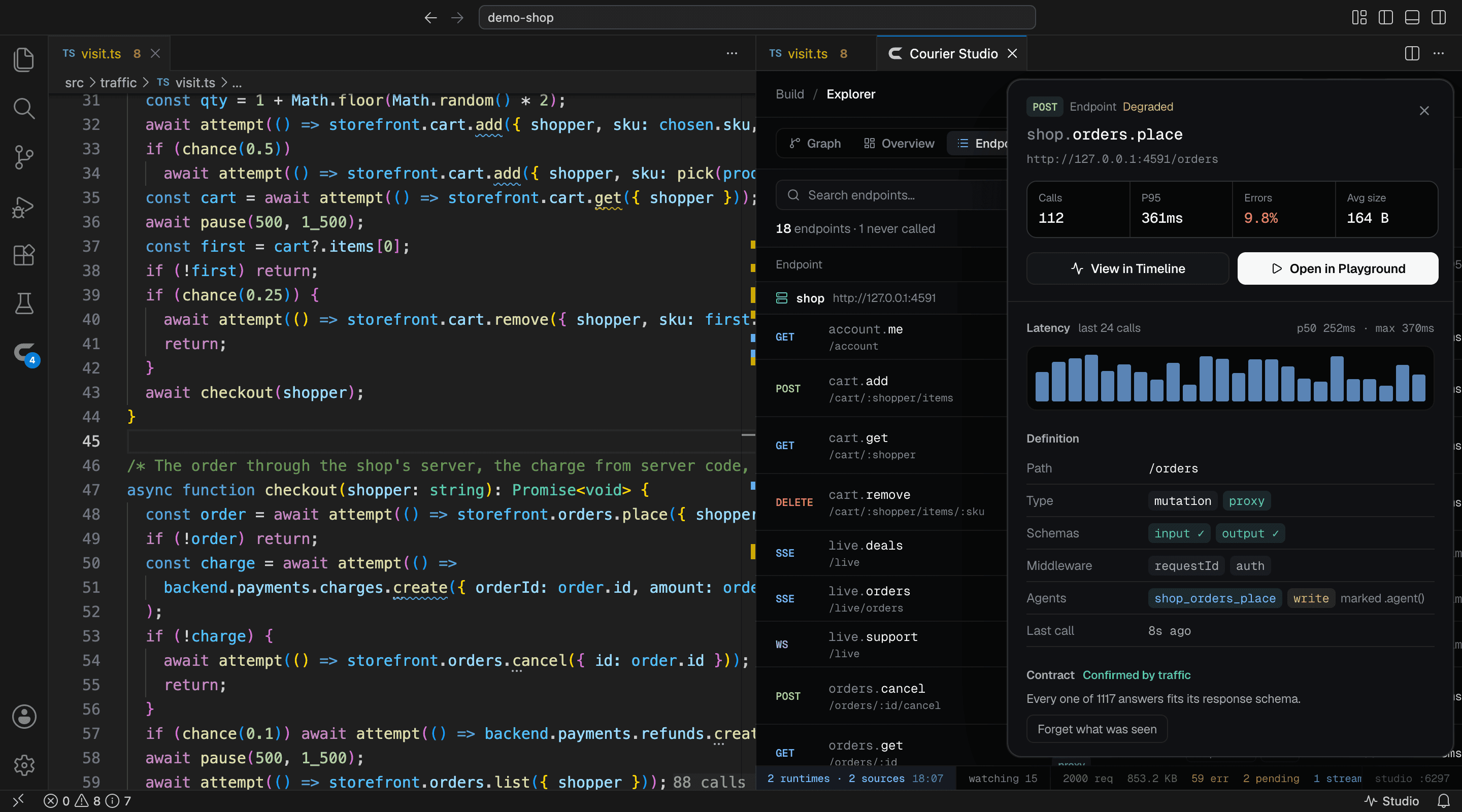
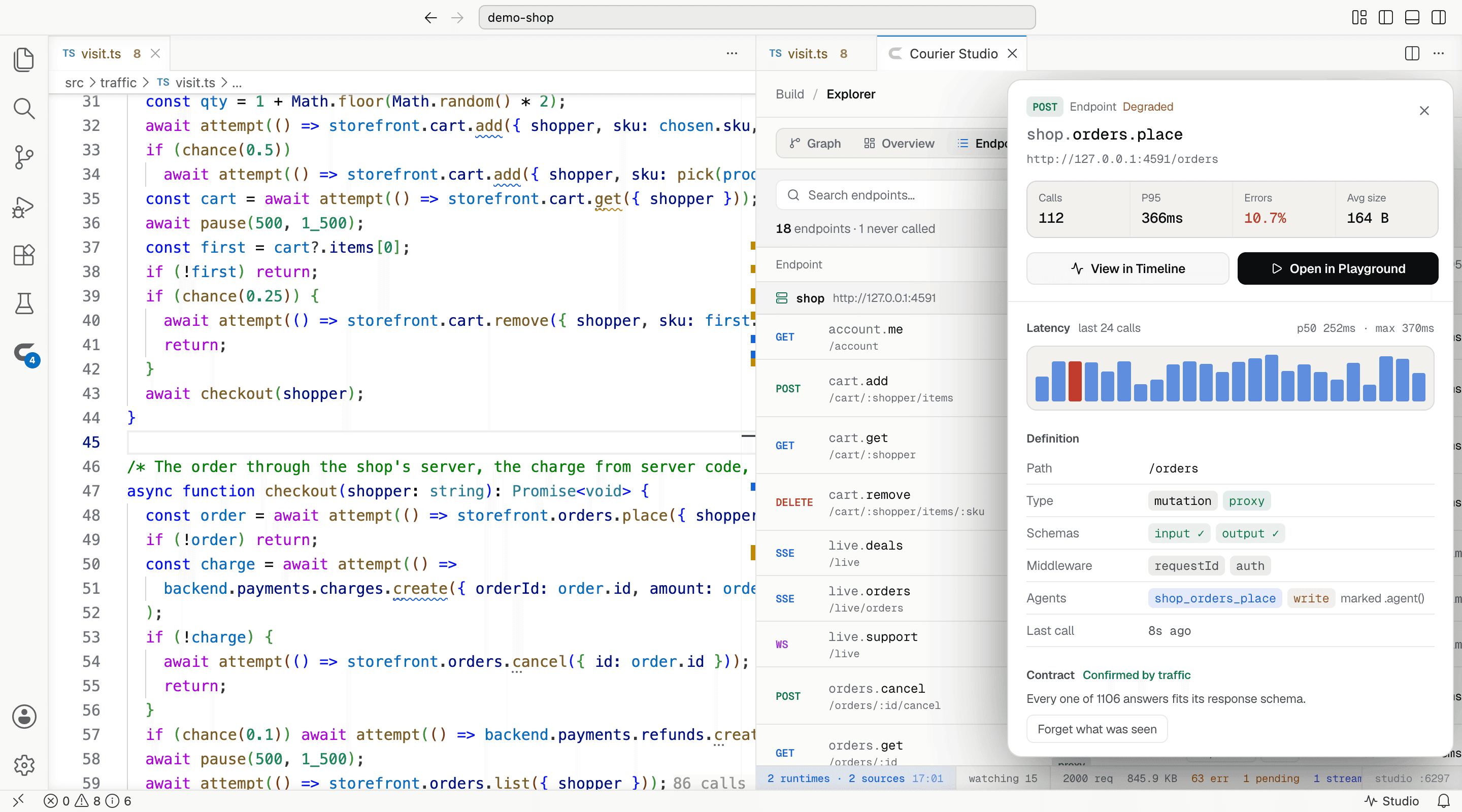
The tab shows Studio in the editor's theme, light or dark, and follows it when you switch. It opens with your project's token, so what changes things in Studio — a scenario switched, a schema fixed, a mock declared — works there as in the page Studio's own link opens. Called from, in the tab, opens the file beside Studio at its line. The editor keeps the tab across restarts, open on the page it showed. In a remote workspace — over SSH, in a container — the tab reaches Studio through the port the editor forwards.
From a call to its endpoint, and back
The editor reads the project's endpoints from Studio as it reads your code's own:
| Where | What it does |
|---|---|
| Go to Definition on a call | Opens the endpoint's declaration in its group's file — the method, the path, the response |
| Find All References on a call or a declaration | Lists every call to the endpoint the project's code makes |
| Above a declaration | The endpoint's figures, and how many places call it — a click lists them |
| Go to Symbol in Workspace | Every endpoint by its full name: #orders.place finds the declaration |
A hook that names its endpoint as a string, as q.orders.useQuery("list") does, goes to the same declaration. A declaration moved in a file you save is found again at once.
The Courier view
The Courier icon in the Activity Bar opens every endpoint of your project and how its calls went, its badge counting the endpoints whose calls failed. Each source holds the groups its calls name and their endpoints; a monorepo lists each project with its own Studio.
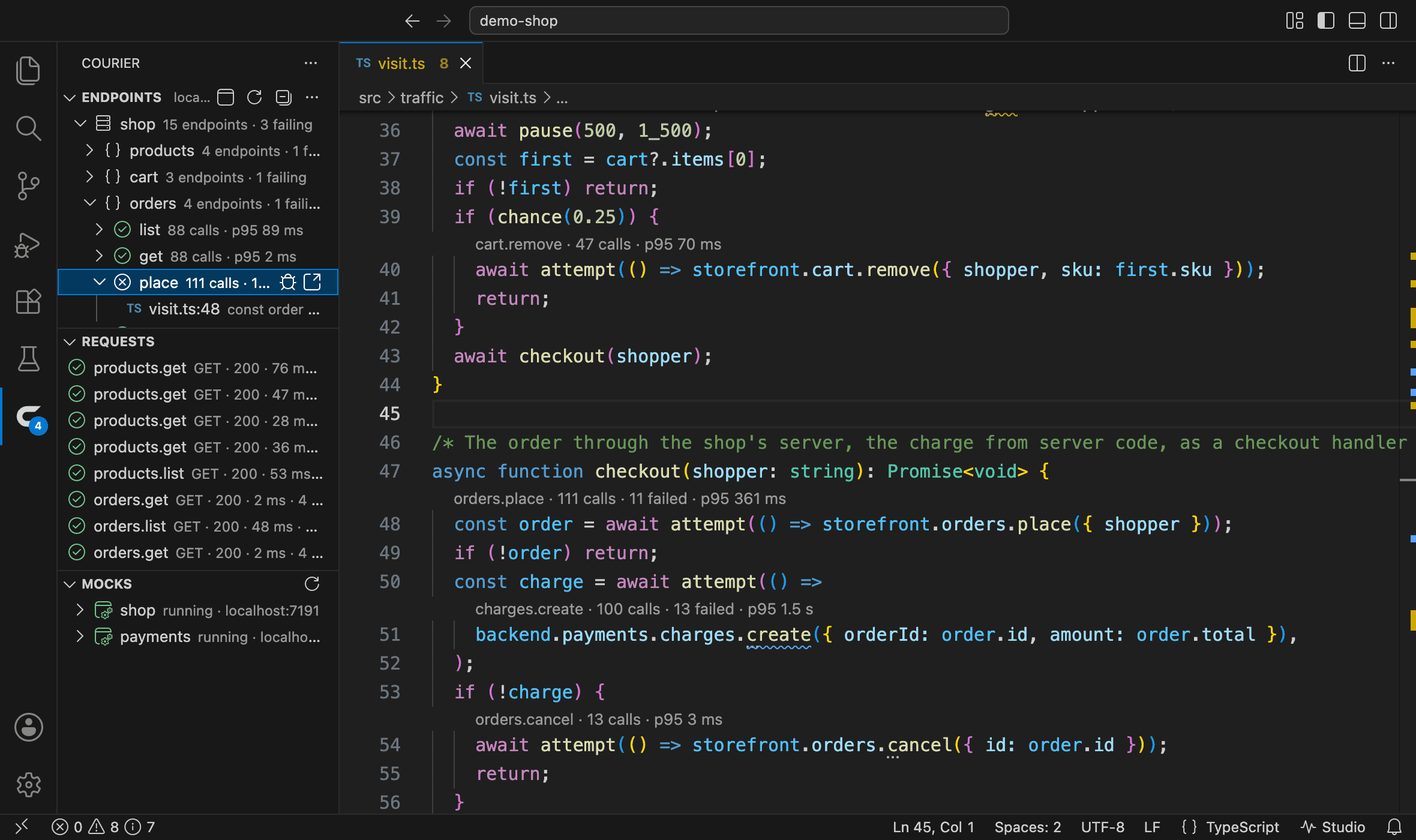
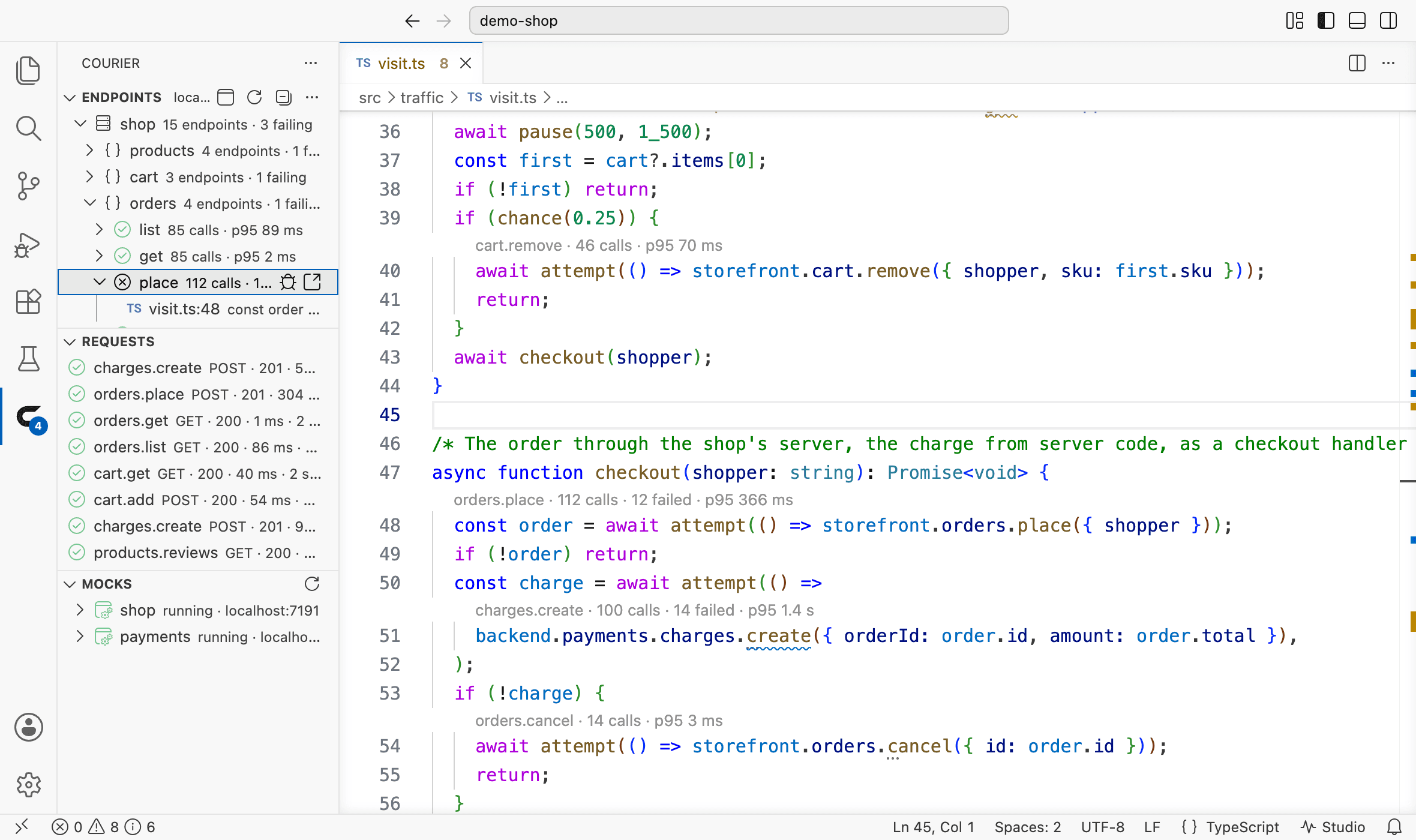
An endpoint shows how its calls went in the colours the editor gives test results — failed, all answered, not called yet — with its figures beside it and its hover as the tooltip. Open it for each place the project's code calls it; a click opens the file at that line.
| Action on an endpoint | What it opens |
|---|---|
| Open in Studio | The endpoint in Studio's Explorer |
| Show Failed Calls in Studio | Studio's Timeline with the endpoint's failed calls |
| Open the Latest Failure | The latest failed request in Studio's inspector |
Requests and mocks
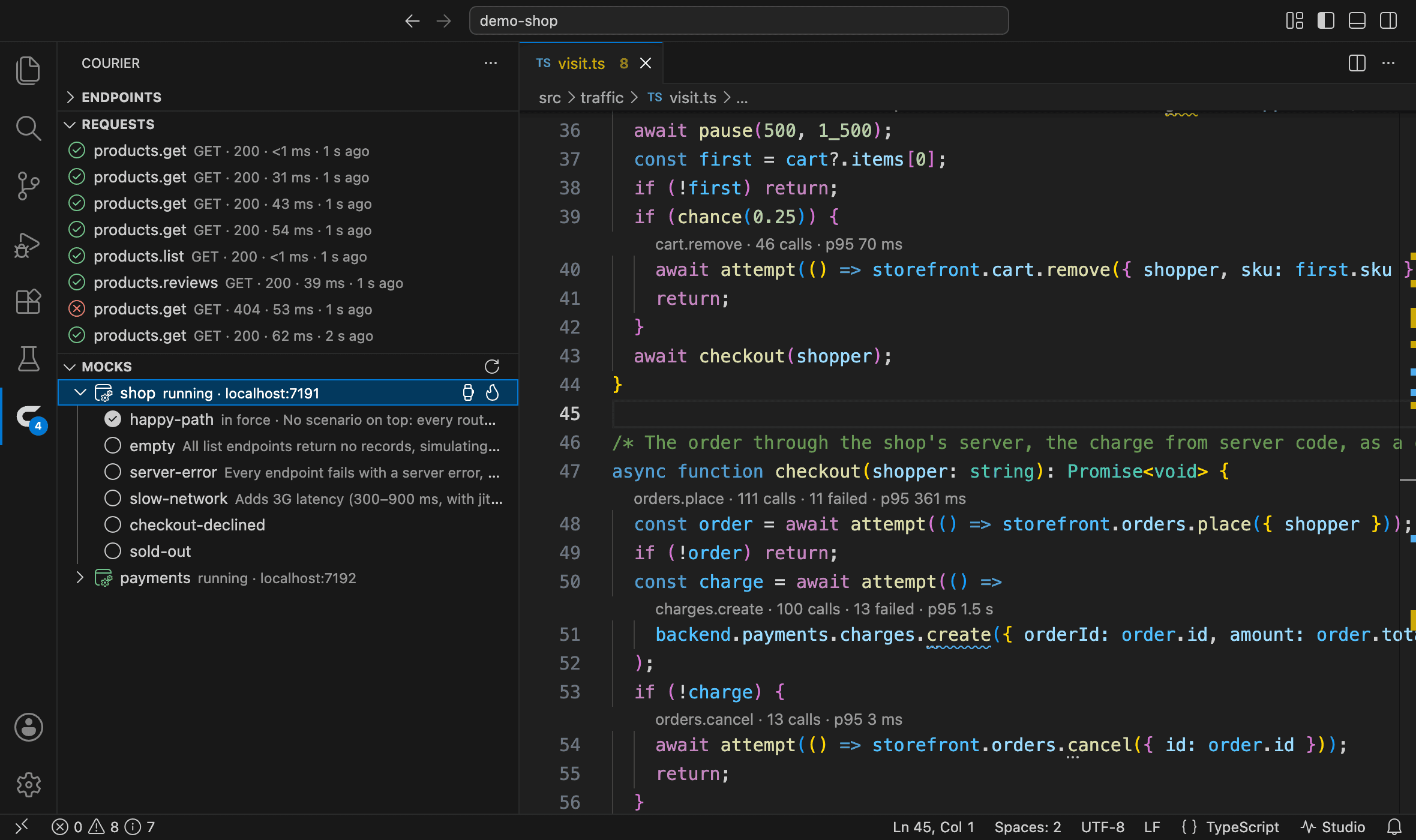
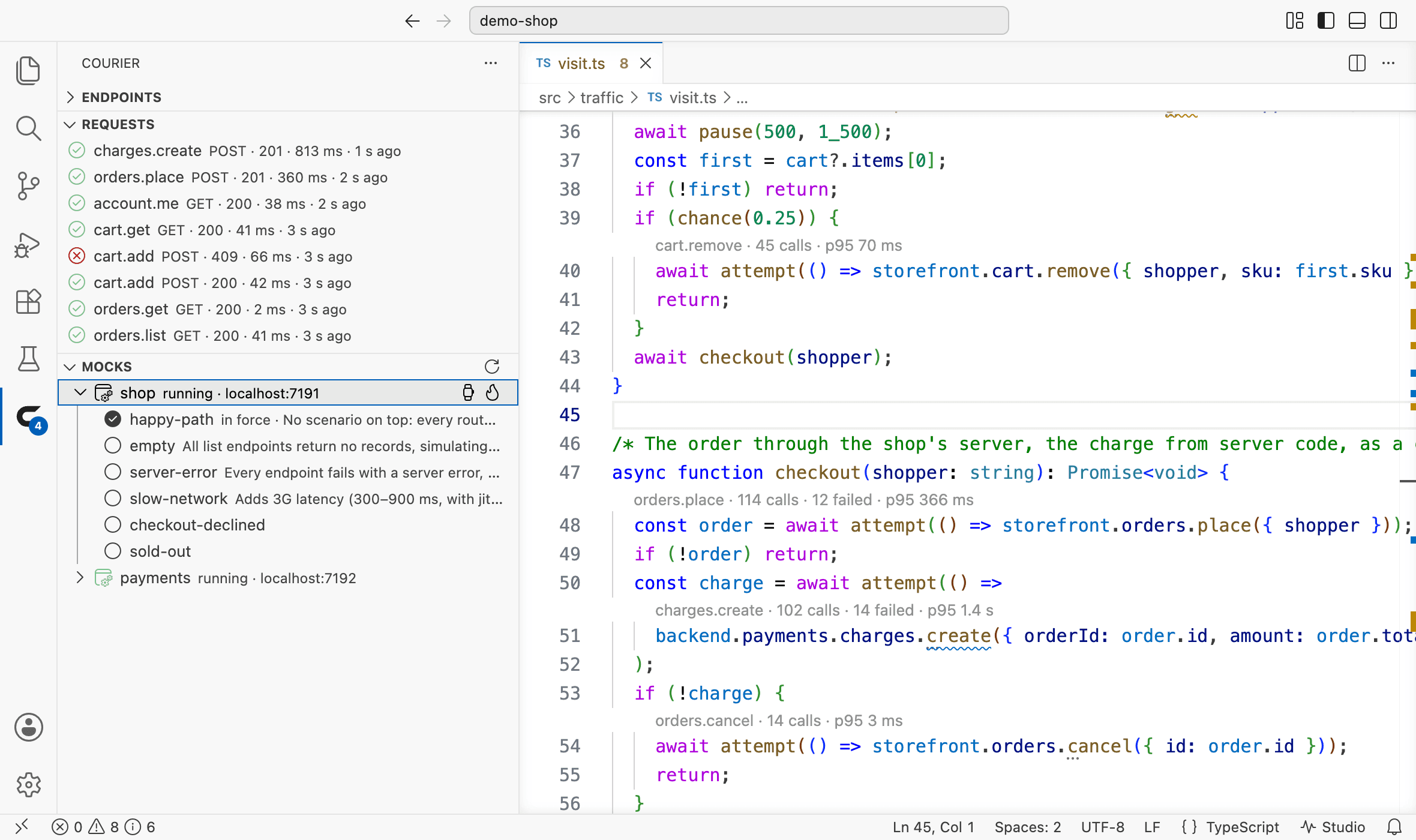
Below the endpoints, two views follow the session as it runs. Requests lists the latest requests Studio recorded, newest first — the endpoint, its method, its status and how long it took — a failed one in the editor's colour for a failed test, and a click opens it in Studio's inspector. Show Failed Requests Only, in its title bar, keeps to the failures.
Mocks lists each mock server Studio runs, its address, and the delay and faults set on it; open one for its scenarios, the one in force marked, and click another to switch to it. Delay Answers… sets one of Studio's delays on a mock — 4G, 3G, satellite — Fail Some Answers… one of its fault presets — degraded, unstable, down — and Stop Delays and Faults takes both off again. They change the mock with your project's token, as Studio's own Mocks page does.
With no Studio running, the view offers to start one; in a workspace without Courier, to set it up: Set Up Courier runs Create Courier in a terminal, which shows its plan and changes nothing until you agree.
Start Studio runs your project's own studio script through the package manager its lockfile names, when that script runs Courier Studio, and npx @noverax/courier-studio otherwise — in a terminal of its own, named after the project. Asked again, it shows that terminal.
Adding to your API
Courier: New Endpoint… — from the palette, the Courier view's menu, or the editor's context menu while Studio runs — asks which group, its name, its method and its path, and types the endpoint in after the group's last one, the way that file writes its endpoints: the same builder, the same indentation, a comma where one is needed. Its variables and its response are left for you to fill in, a Tab apart. With the cursor among a group's endpoints, that group is offered first; a name the group already has is refused as you type it.
| Command | What it does |
|---|---|
| Courier: Import an API… | Runs courier-studio import on an OpenAPI, Swagger or Postman document, from an address or a file of the project's |
| Courier: Show OpenAPI Document… | Opens a source's OpenAPI document, as Studio writes it from your config, in an editor tab |
| Courier: Check API Changes… | Runs courier-studio diff against a branch, a tag or a commit, and reports what the change breaks |
Each runs in a terminal of its own, named after it and the project, in the project's folder, as npx @noverax/courier-studio … — the project's own Studio when it has one installed.
Tasks and tests
Terminal › Run Task… › courier lists Courier's commands for each project of the workspace: studio runs Studio in the background, verify checks every recorded call against the API as declared now, openapi writes each source's OpenAPI document into openapi/, diff reports what a change breaks against origin/main, and agents lists what the project offers agents and why. A task of your own names them in tasks.json:
{
  "type": "courier",
  "command": "verify",
  "project": "apps/shop"
}
The calls Studio recorded as tests — the files under tests/recorded/ — show in the Test Explorer, each file with its calls. Running them checks each call against the API as your code declares it now, through courier-studio verify: a call whose answer the declared schema no longer takes fails, with what changed and where.
Ask @courier
In the editor's chat, @courier answers from the Studio of the file in front:
| Command | What it answers |
|---|---|
/status | How every endpoint is doing: the ones with failed calls first, then the slowest, each with its figures |
/failures | The latest failed requests and why, with a button to the newest in Studio's inspector |
/audit | What the audit found in the requests, gravest first |
/endpoint | One endpoint — named, or the one under the cursor — its figures and latest calls, linked to its declaration and the code that calls it |
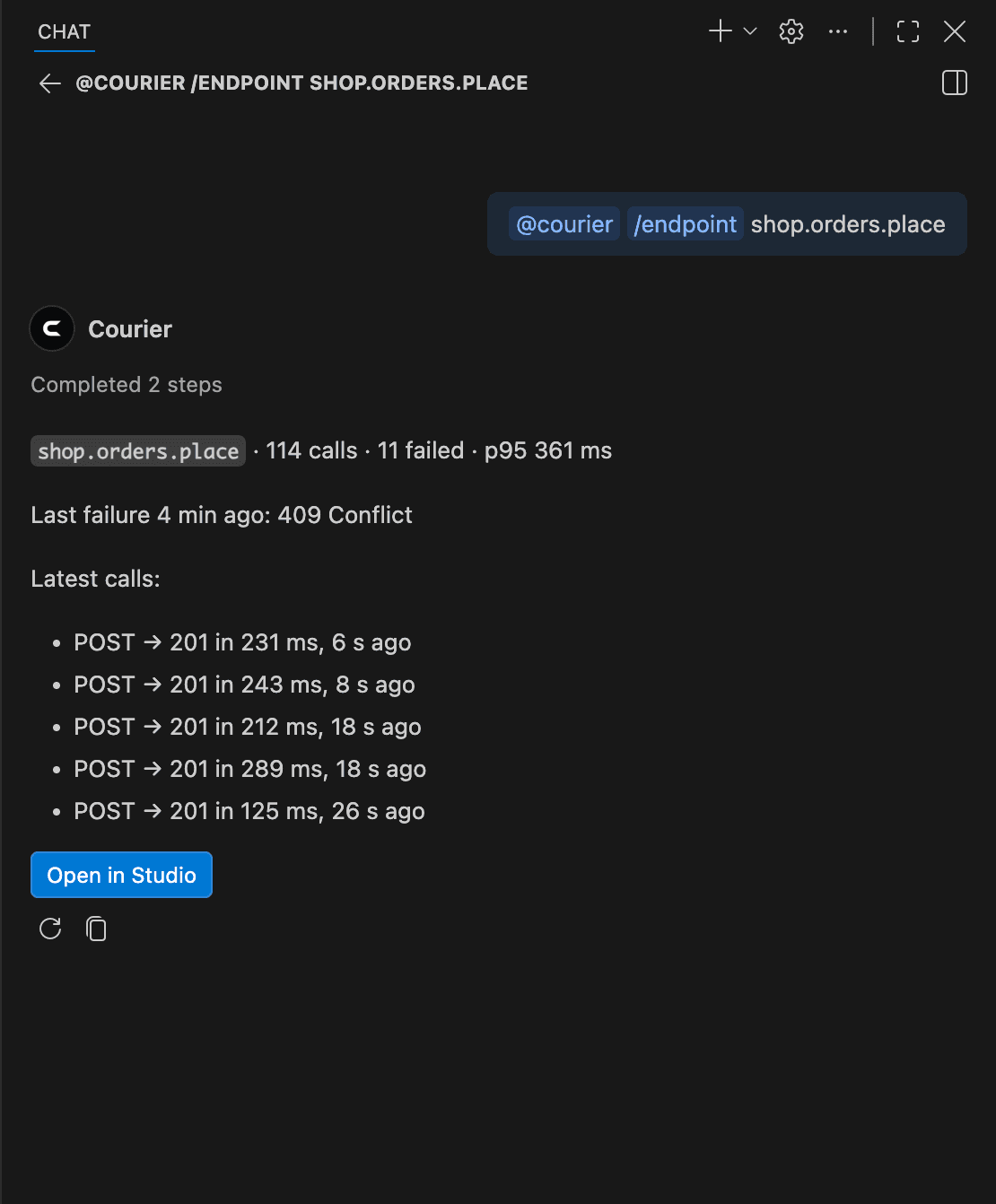
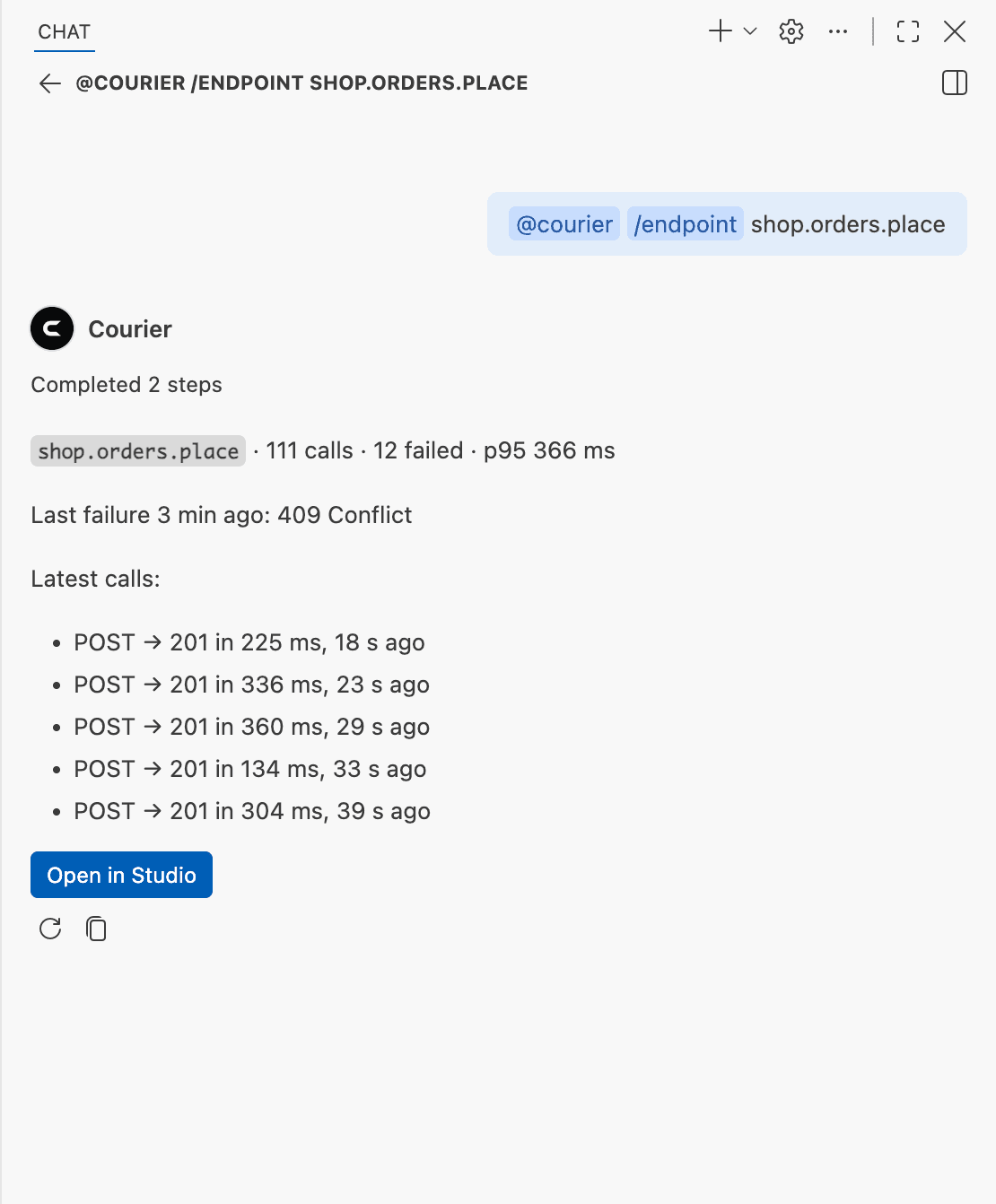
Any other question — why does checkout fail? — goes to the model you picked in the chat, with Studio's figures for this session: how the endpoints are doing, the latest failures, the audit's findings, and the latest calls of each endpoint the question names. Each answer offers what to ask next. The chat needs a language model in the editor — GitHub Copilot's, or one an extension provides — and @courier shows only in a workspace with a Courier project or a running Studio.
The audit at your calls
Studio's audit reads the requests it recorded; the extension marks its findings at the calls they concern, in the files you open and in the Problems panel under Courier audit: an N+1 pattern where the code asks for each item and where it lists them, a timeout risk at the slow endpoint's calls, a write retried without an idempotency key where the code writes.
An audit error is a warning in the editor — the code compiles; its traffic needs a look — an audit warning is information, and a hint a hint. Findings of one kind at one call make one mark, at the gravest of them. Each mark links to Studio's Audit page, where the finding reads in full with its fix.
Told when a call fails
Set courier.notifications.failures and a call that fails while you work brings a notice — the endpoint and why — with a button to the failure in Studio's inspector and one to the failed requests. Each endpoint is told of at most once a minute, several failing together share one notice, and the failures already there when you turn it on are not told again. It is off until you turn it on.
Courier File Icons
Material Icon Theme and vscode-icons take custom icons through their settings, and Courier brings its own for courier.config.*, courier.mocks.* and the .courier folder — the folder drawn in each theme's own style: flat as Material Icon Theme draws its folders, and with its emblem on a disc at the corner as vscode-icons draws its, with a look of its own for light colour themes. You agree once: with either theme in use in a Courier project — when the editor starts, when a Courier project turns up, or when you pick the theme later — Courier File Icons offers to put them in, and one click shows them, no reload needed. Courier: Show Courier's Icons in the File Icon Theme does it any time, and Courier: Remove Courier's Icons from the File Icon Theme takes them out again.
Courier File Icons is an extension of its own, installed with Courier. Icon themes run where the editor's window runs, and so does it, beside them — on your computer in a remote window too, while Courier runs where your code is.
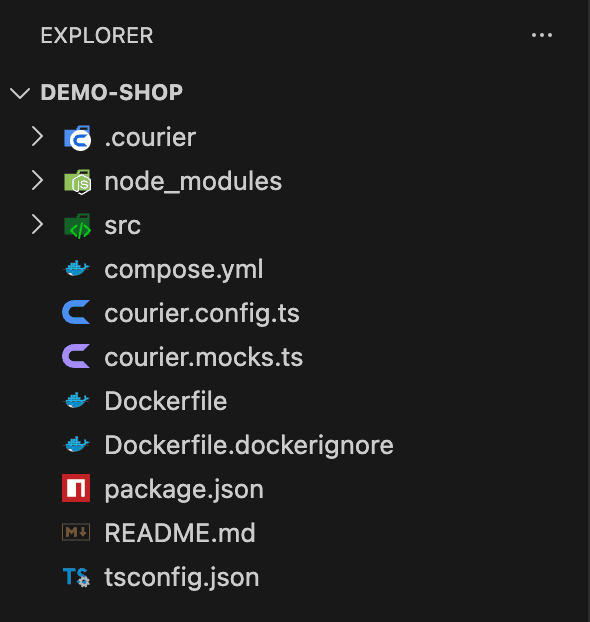
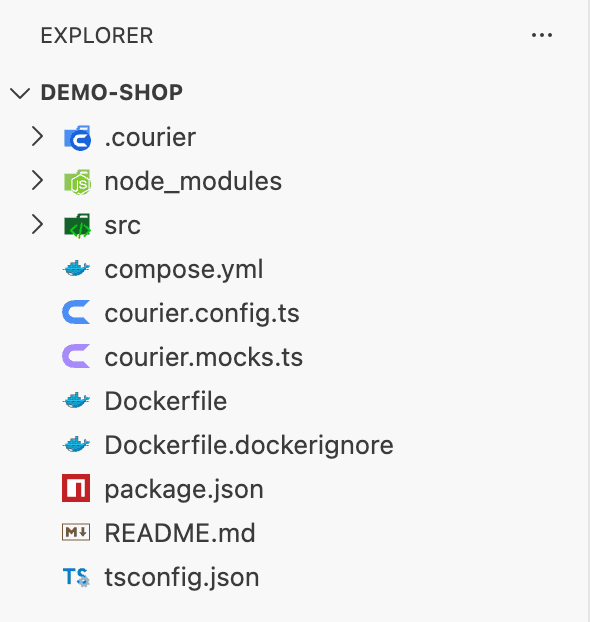
From then on they follow your settings by themselves:
| When | What happens |
|---|---|
| You pick the other theme, or install it later | The icons go into it, in its own style, without asking again |
| You open another machine Settings Sync brings your settings to | The icons are put in place there on their own, without asking again |
| You open a remote window — SSH, WSL, a container, a codespace | They show as they do locally: Courier File Icons runs on your computer, beside the theme |
| You use several profiles | A profile that asked for the icons shows them; one that never did leaves the others' copies alone |
| An update comes | Nothing changes: the settings name no version |
| You take them out, on any machine | They go on every machine Settings Sync reaches, and their copies there go with the last profile that used them |
| You uninstall Courier File Icons | They keep showing; take them out first to leave nothing behind |
They go in through your user settings — the associations those themes read — beside your own, which stay as they are. The icons themselves sit in a folder of their own beside Material Icon Theme, .noverax-courier-icons in the editor's extensions folder — its dot keeps the editor from reading it as an extension — and in vscode-icons' custom icons folder. Every profile shares both folders: an empty file for each profile that put the icons in, named by a digest of an id the profile keeps in its own state, keeps the copies until the last of them takes the icons out — and a profile not started for ninety days, deleted or temporary, no longer keeps them.
Each icon theme builds one theme file, in its own folder, for every profile — from the settings of whichever profile changed them last. A profile that asked for Courier's icons and finds them left out has it built again as it starts: vscode-icons by its own command, Material Icon Theme, which has none, by Courier's folder entry going out and coming back. vscode-icons is built again without them for a profile that never asked; Material Icon Theme may show them there until its settings change in that profile.
A list of vscode-icons associations in a folder's own settings takes the place of yours there, so Courier's icons would not show in it: Courier File Icons says so once per folder and, when you agree, adds Courier's icons after the folder's own — in the folder's settings file, which your team may share. A folder you trust whose settings name Courier's icons gets their copies, whoever put them there. In a folder you have not trusted, the folder vscode-icons reads custom icons from comes from your own settings alone, so the workspace cannot choose where the icons are written.
A theme that does not run beside Courier File Icons takes no icons from it, and is said so: in a remote window, one installed on the remote machine only — install it on your computer too, and VS Code runs it there. Other icon themes take no custom icons; VS Code's own Seti among them.
Your API, for VS Code's agent
VS Code's agent finds Courier's MCP servers on its own — nothing to write in .vscode/mcp.json. Each project of the workspace offers the ones it has installed, each run from the project's folder, and started only when the agent first needs it:
| Server | Offered when the project has | What the agent gets |
|---|---|---|
| Courier API | @noverax/courier-mcp | The endpoints marked .agent(), and those the agents policy offers |
| Courier Studio | @noverax/courier-studio | The requests Studio recorded, its audit, its mocks and their scenarios |
The API's server is handed the project's .env.development.local, .env.local, .env.development and .env — those that exist, the first one setting a variable winning — so its calls reach your backend. It needs VS Code 1.101 or later; Cursor and Windsurf configure their agent's servers themselves, as In Your Editor shows.
Snippets
| Type | For |
|---|---|
courier-endpoint | An endpoint of a group: its method, path, variables and response |
courier-group | A group of endpoints under one path |
courier-api | An API: its base address and its groups |
courier-boundary | The endpoints the browser may call through your server |
courier-query, courier-mutation | A read and a write with React Query |
courier-subscription, courier-channel | A stream followed and a channel joined while a component is mounted |
courier-call | A call made directly, on the server or in a script |
Commands and settings
| Command | What it does |
|---|---|
| Courier: Open in Courier Studio | Opens Studio for the project of the file in front |
| Courier: Open Studio in Editor | Opens Studio in a tab of the editor's own |
| Courier: Open Studio in Browser | Opens Studio in your browser |
| Courier: Start Studio | Starts Studio for the project of the file in front, or the one you pick |
| Courier: Set Up Courier | Runs Create Courier in a terminal, in the workspace folder you pick |
| Courier: New Endpoint… | Adds an endpoint to a group, as its file writes them |
| Courier: Import an API… | Imports an OpenAPI, Swagger or Postman document into the project |
| Courier: Show OpenAPI Document… | Opens a source's OpenAPI document |
| Courier: Check API Changes… | Reports what a change to the API breaks, against a git ref |
| Courier: Show Courier's Icons in the File Icon Theme | Puts Courier's icons into Material Icon Theme or vscode-icons — from Courier File Icons |
| Courier: Remove Courier's Icons from the File Icon Theme | Takes them out again — from Courier File Icons |
| Courier: Refresh Endpoint Hints | Finds the calls again and brings the figures up to date |
| Courier: Show Log | Opens Courier's log in the Output panel |
| Setting | What it does |
|---|---|
courier.hints.enabled | Show the figures over endpoint calls (default: on) |
courier.hints.style | codeLens: a line above each call (default); inlay: at the end of the call's line |
courier.hints.refreshSeconds | How often the figures are brought up to date while the window has focus (default: 5) |
courier.studio.openIn | Where Studio's pages open: editor, a tab of the editor's own (default), or browser |
courier.audit.diagnostics | Mark the audit's findings at the calls they concern (default: on) |
courier.notifications.failures | Tell with a notification when a call fails while you work (default: off) |
courier.agents.mcpServers | Offer VS Code's agent each project's MCP servers (default: on) |
courier.fileIcons.offer | Offer once to put Courier's icons into the icon theme in use (default: on) — a setting of Courier File Icons |
courier.studio.url | Studio's address, when it runs for a project outside the workspace — on this machine, in your user settings |
Courier's log, under Courier in the Output panel, says when each project's Studio starts answering or stops, and why a question to Studio found no answer — written once, not again each time the views ask.
How a call is found
Studio writes where it runs to .courier/studio.json in your project while it runs, and takes it away when it stops; the extension reads the nearest one above the file you are in, so each project of a monorepo finds its own Studio. The extension sends Studio the file as it stands in the editor, saved or not, and Studio reads the calls in it against the endpoints your config defines:
| A call | Is read as |
|---|---|
api.orders.place({ sku }) | orders.place: a call that ends with an endpoint's names, after whatever it is made on |
backend.payments.account.me() | payments' account.me: the source's name written before the endpoint's settles which source |
const shop = createProxyCaller<typeof api>("shop") then shop.account.me() | shop's account.me: a caller the file creates names its source |
q.orders.useQuery("list") | orders.list: a query hook names its endpoint as its first argument |
When two sources define an endpoint of the same name and nothing settles which one a call reaches, the extension shows both. A top-level endpoint is matched only through a caller the file creates or its source's name — its one name, get or list, is too common to tell a call by. TypeScript and JavaScript files are read, and the scripts of Vue, Svelte and Astro components.
From Studio to the code
Every request's Overview in the inspector, and every endpoint in the Explorer, has a Called from section: the files and lines that call the endpoint, each with its line of code. A click opens the file at that line in your editor — choose which in Settings → Editor: VS Code, Cursor, Windsurf, VSCodium, Zed, WebStorm or IntelliJ IDEA. In Studio's tab inside the editor, it opens the file beside Studio. Studio looks through the files Git tracks, so whatever .gitignore leaves out is left out; outside Git, everything but dependencies, builds and caches.
What stays on your machine
The extension talks only to Studio, on this machine. What it shows — the figures, the requests, the mocks, the declarations, the audit — it reads as any page of Studio's does. Two things change something, and they use the token Studio keeps in your project's .courier/studio-token: switching a mock's scenario or its delays and faults in the Mocks view, and Studio's own tab, which opens with the token as Studio's own link does. The token goes nowhere but to that Studio.
The extension sends Studio the text of the files you open, so an address naming another host — in a project's .courier/studio.json, or in courier.studio.url — is ignored, and the setting is read from your user settings alone: a repository you clone cannot point the extension elsewhere. Studio reads the files you send it and your project's own, and keeps nothing of them. A Studio serving a public demo writes no address file and answers neither the extension nor Called from: it reads no project's code for its visitors.
A question to @courier in words goes to the model you picked in the chat, with Studio's figures for this session — endpoint names, statuses, error messages, the audit's findings — as any question in that chat goes to it with your code. The four commands answer from Studio alone, and ask no model.
Courier File Icons writes to your user settings only when you ask for Courier's icons — and keeps them as you left them on your other machines — to a folder's settings only when you agree to add the icons there, and takes back what it wrote to your settings when you remove them. Neither extension sends anything anywhere else, and neither keeps telemetry.
The extension starts Studio, Create Courier and the agent's servers from the project's folder, so it stays off in a workspace you have not trusted: VS Code's Restricted Mode turns it off until you trust the folder.