Material Icon Theme and vscode-icons take custom icons through their settings, and Courier brings its own for courier.config.*, courier.mocks.* and the .courier folder — the folder drawn in each theme's own style: flat as Material Icon Theme draws its folders, and with its emblem on a disc at the corner as vscode-icons draws its, with a look of its own for light colour themes. With either theme in use, Courier File Icons puts them in as the editor starts — in any workspace — or as soon as you pick the theme, no reload needed, and says so once, in the window you are in, with Take Them Out. That takes them out of every theme and keeps them out, on your other machines too, as does Courier: Remove Courier's Icons from the File Icon Theme; Courier: Show Courier's Icons in the File Icon Theme puts them back any time. Icons you take out of your settings by hand stay out as well.
Courier File Icons is an extension of its own, installed with Courier. Icon themes run where the editor's window runs, and so does it, beside them — on your computer in a remote window too, while Courier runs where your code is.
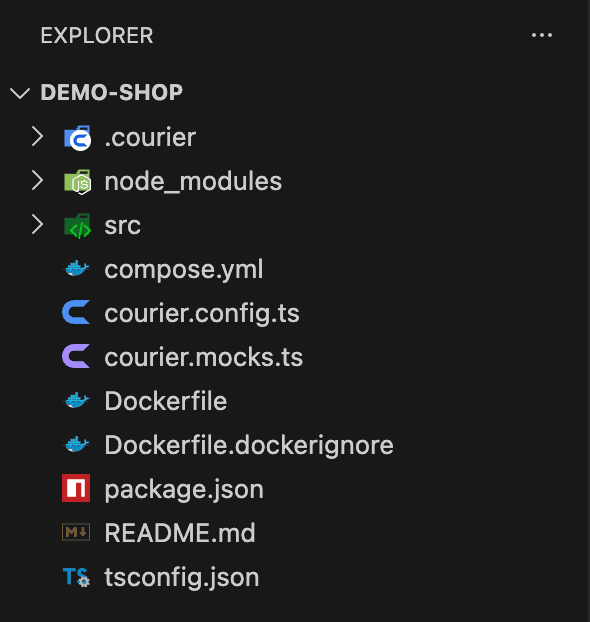
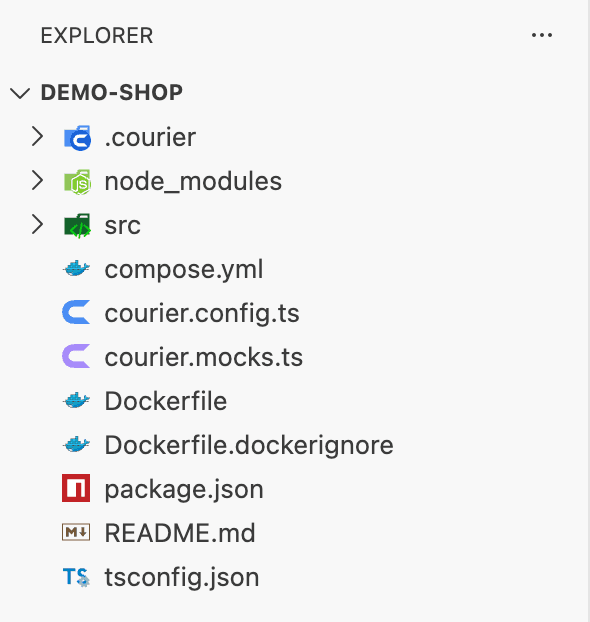
From then on they follow your settings by themselves:
| When | What happens |
|---|---|
| You pick the other theme, or install it later | The icons go into it, in its own style, without a word |
| You open another machine Settings Sync brings your settings to | The icons are put in place there on their own, without a word |
| You open a remote window — SSH, WSL, a container, a codespace | They show as they do locally: Courier File Icons runs on your computer, beside the theme |
| You use several profiles | Each profile shows them as its own settings say; one without them leaves the others' copies alone |
| An update comes | Nothing changes: the settings name no version |
| You take them out, on any machine | They go on every machine Settings Sync reaches and stay out until you show them again; their copies there go with the last profile that used them |
| You uninstall Courier File Icons | They keep showing; take them out first to leave nothing behind |
They go in through your user settings — the associations those themes read — beside your own, which stay as they are. The icons themselves sit in a folder of their own beside Material Icon Theme, .noverax-courier-icons in the editor's extensions folder — its dot keeps the editor from reading it as an extension — and in vscode-icons' custom icons folder. Every profile shares both folders: an empty file for each profile that put the icons in, named by a digest of an id the profile keeps in its own state, keeps the copies until the last of them takes the icons out — and a profile not started for ninety days, deleted or temporary, no longer keeps them.
Each icon theme builds one theme file, in its own folder, for every profile — from the settings of whichever profile changed them last. A profile whose settings hold Courier's icons and finds them left out has it built again as it starts: vscode-icons by its own command, Material Icon Theme, which has none, by Courier's folder entry going out and coming back. vscode-icons is built again without them for a profile whose settings hold none; Material Icon Theme may show them there until its settings change in that profile.
A list of vscode-icons associations in a folder's own settings takes the place of yours there, so Courier's icons would not show in it: Courier File Icons says so once per folder and, when you agree, adds Courier's icons after the folder's own — in the folder's settings file, which your team may share. A folder you trust whose settings name Courier's icons gets their copies, whoever put them there. In a folder you have not trusted, the folder vscode-icons reads custom icons from comes from your own settings alone, so the workspace cannot choose where the icons are written.
A theme that does not run beside Courier File Icons takes no icons from it, and is said so: in a remote window, one installed on the remote machine only — install it on your computer too, and VS Code runs it there. Other icon themes take no custom icons, VS Code's own Seti among them, and the log says so. With one of them in use, Courier: Show Courier's Icons in the File Icon Theme opens the editor's File Icon Theme picker, as does the Mark Courier's files step of Get Started with Courier: choose Material Icon Theme or vscode-icons there — or install one — and the icons go in as soon as you do. Courier File Icons never changes the icon theme you use.